

TUI Dashboard
The TUI (Terminal User Interface) dashboard provides real-time email monitoring across all your inboxes. Launch it by running vsb without any subcommands.
Launching the Dashboard
Section titled “Launching the Dashboard”# Start the TUI dashboardvsbThe dashboard automatically watches all stored inboxes and displays incoming emails in real-time using the configured delivery strategy (SSE by default).
Interface Layout
Section titled “Interface Layout”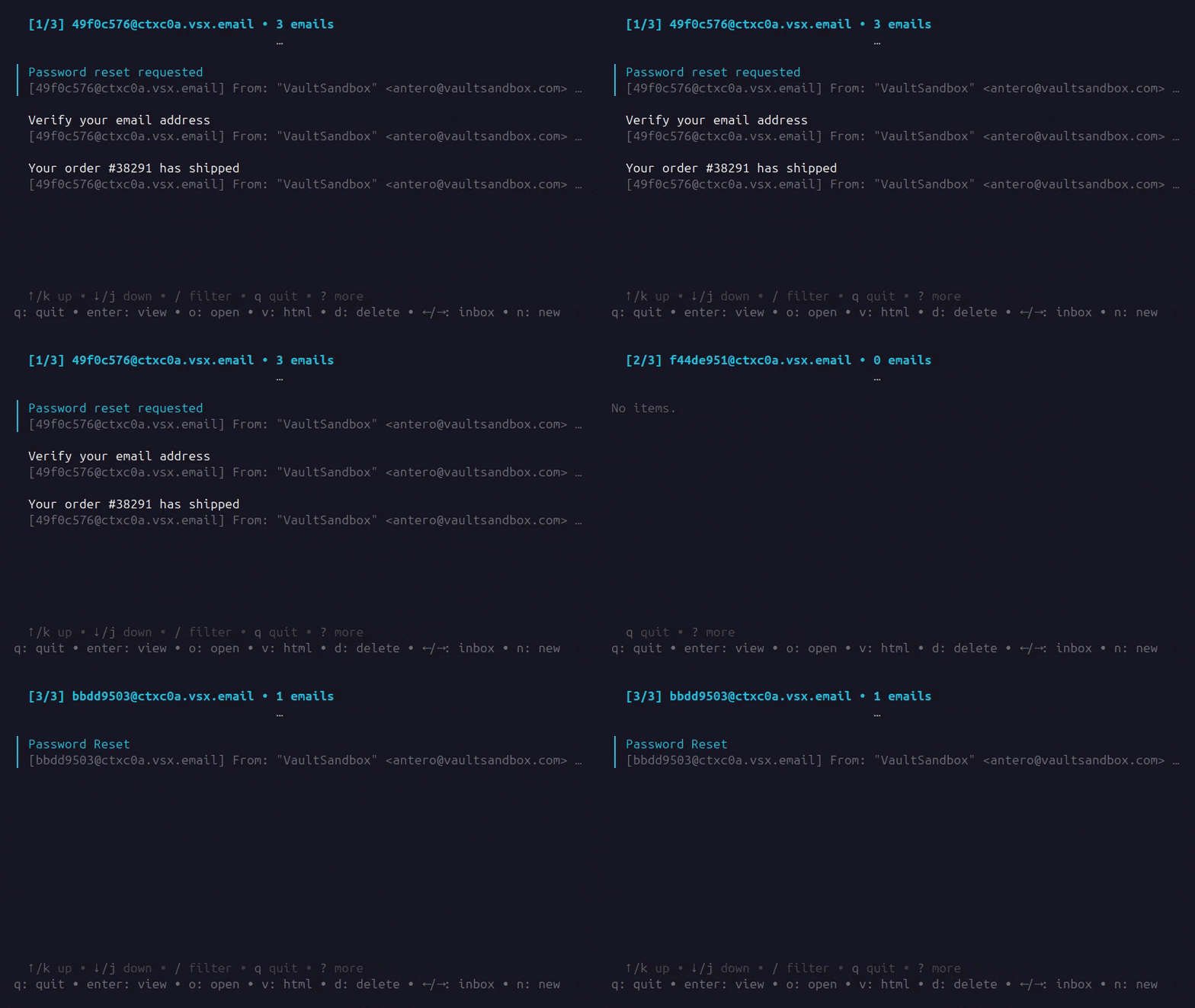
Keyboard Shortcuts
Section titled “Keyboard Shortcuts”Navigation
Section titled “Navigation”| Key | Action |
|---|---|
↑ / k | Move up in email list |
↓ / j | Move down in email list |
← / h | Switch to previous inbox |
→ / l | Switch to next inbox |
Enter | View selected email |
Esc / Backspace | Go back / close view |
Actions
Section titled “Actions”| Key | Action |
|---|---|
n | Create new inbox |
d | Delete selected email |
o | Open first link in browser (list view) |
v | Open HTML email in browser |
/ | Filter emails |
? | Show all keyboard shortcuts |
q/Ctrl+C | Quit dashboard |
Tab Navigation (Detail View)
Section titled “Tab Navigation (Detail View)”| Key | Action |
|---|---|
1-5 | Jump to specific tab |
↑ / k | Navigate up in links/attachments list |
↓ / j | Navigate down in links/attachments list |
Enter | Open selected link or save attachment |
Email Detail Tabs
Section titled “Email Detail Tabs”When viewing an email, use tabs to access different information:
1. Content
Section titled “1. Content”The email body displayed as plain text or rendered HTML. Shows sender, recipient, subject, and timestamps.
2. Security
Section titled “2. Security”Email authentication and spam analysis results:
- SPF - Sender Policy Framework verification
- DKIM - DomainKeys Identified Mail signature validation
- DMARC - Domain-based Message Authentication alignment
- TLS - Transport Layer Security status
- Spam Analysis - Spam score, verdict, and recommended action (when enabled)
3. Links
Section titled “3. Links”All URLs extracted from the email body and HTML content. Navigate with ↑/↓ and press Enter to open the selected link in your browser.
4. Attachments
Section titled “4. Attachments”File attachments with filename, size, and content type. Navigate with ↑/↓ and press Enter to save the selected attachment to the current directory.
5. Raw
Section titled “5. Raw”The raw email source in RFC 5322 format. Useful for debugging email headers and structure.
Multi-Inbox Monitoring
Section titled “Multi-Inbox Monitoring”The dashboard monitors all inboxes stored in your keystore simultaneously. Switch between inboxes using the arrow keys:
←/h- Previous inbox→/l- Next inbox
The current inbox is shown in the header with the position indicator (e.g., [1/3] for first of three inboxes).
Creating Inboxes from the Dashboard
Section titled “Creating Inboxes from the Dashboard”Press n to create a new inbox without leaving the dashboard. The new inbox is immediately added to the watch list.
Filtering Emails
Section titled “Filtering Emails”Press / to enter filter mode. Type to filter emails by subject or sender. Press Esc to clear the filter.
Next Steps
Section titled “Next Steps”- Inbox Commands - Manage inboxes from the command line
- Email Commands - Work with emails outside the TUI
- Wait Command - Script email verification for CI/CD